
Account and Inferock Watch key setup
This guide covers account setup in the development app. Complete account setup in the development app.
Know which key goes where
| Credential | Use |
|---|---|
| Provider key | Connect and verify the provider during account activation. |
| Inferock key | Authenticate your requests through the gateway. The first key is shown once after successful activation. |
Provider credentials are encrypted for storage and tied to your account. Plaintext provider keys are not logged or returned after activation.
1. Sign in or create an account
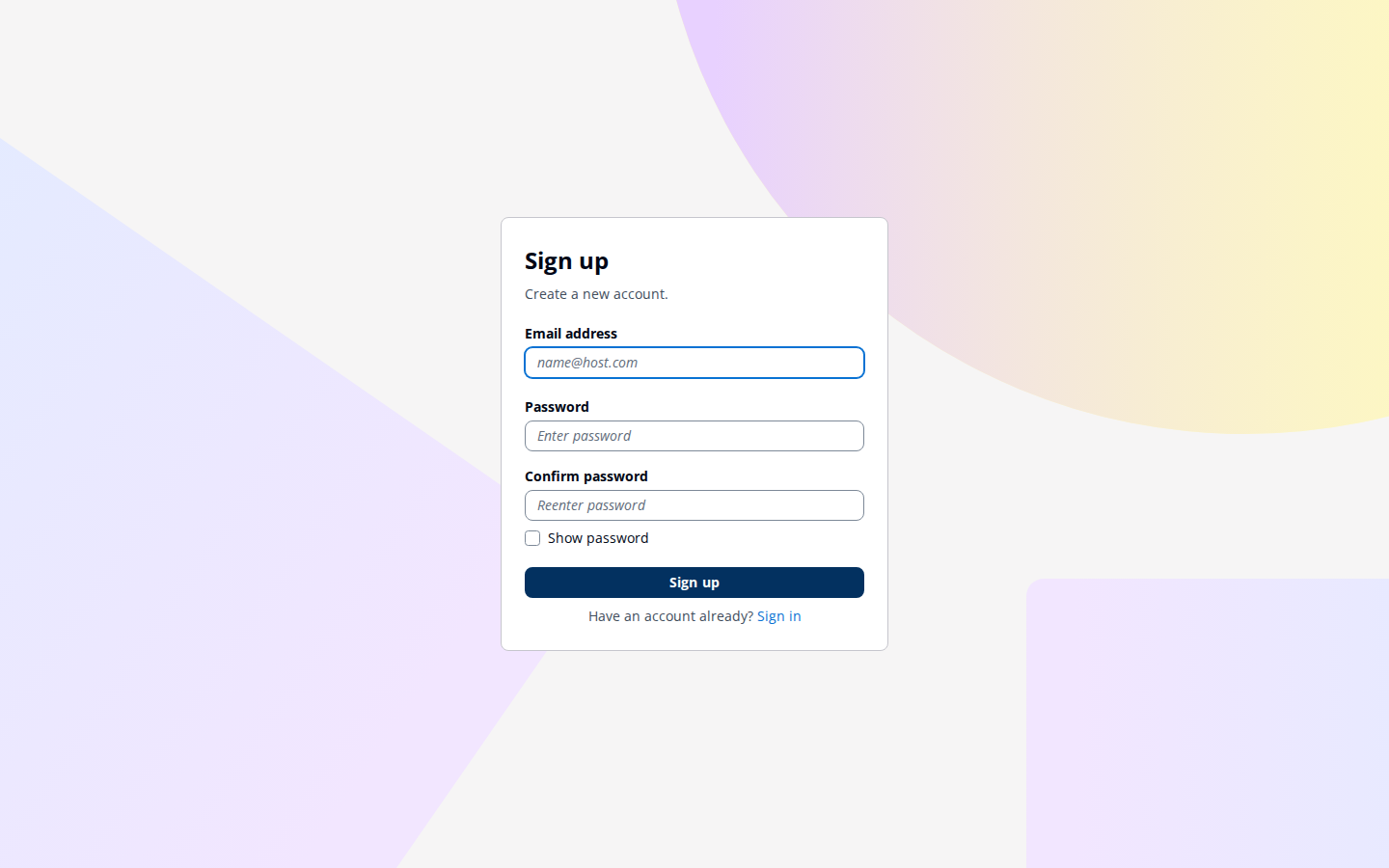
Open the development app. Native sign-in uses your email address. After you create an account, continue to setup in the development app.
Your password must have at least eight characters, including a lowercase letter and a digit. Uppercase letters and symbols are optional. Account recovery uses email.
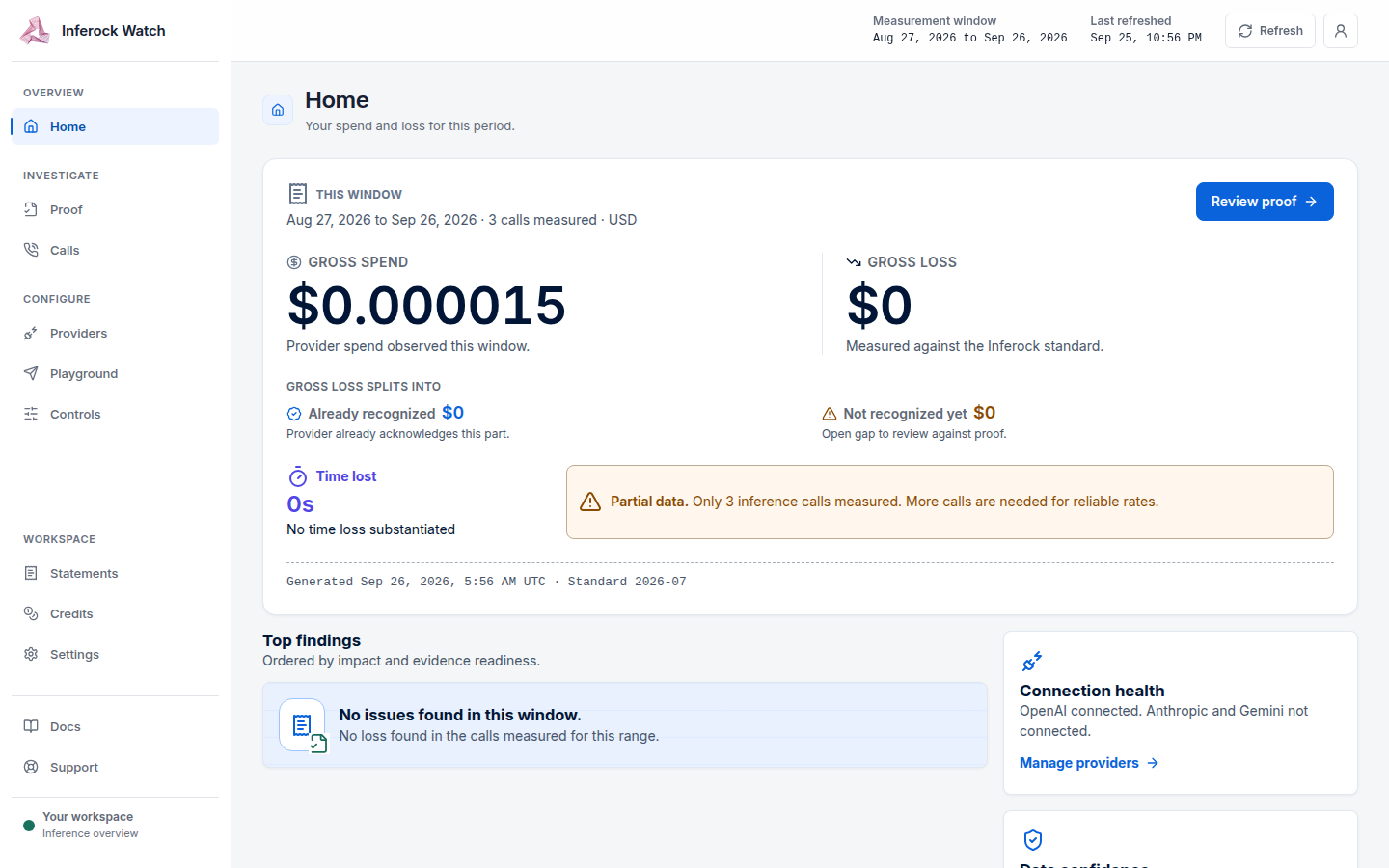
After authentication, an inactive account enters onboarding and an active account opens the dashboard. Complete account activation in the app.
2. Accept the current terms and select a provider
Activation follows Terms → Connect → Verify → Measure. Read the Terms and Privacy presented during setup and accept the displayed version.
Terms version: go-live-terms v9 (2026-09-21).
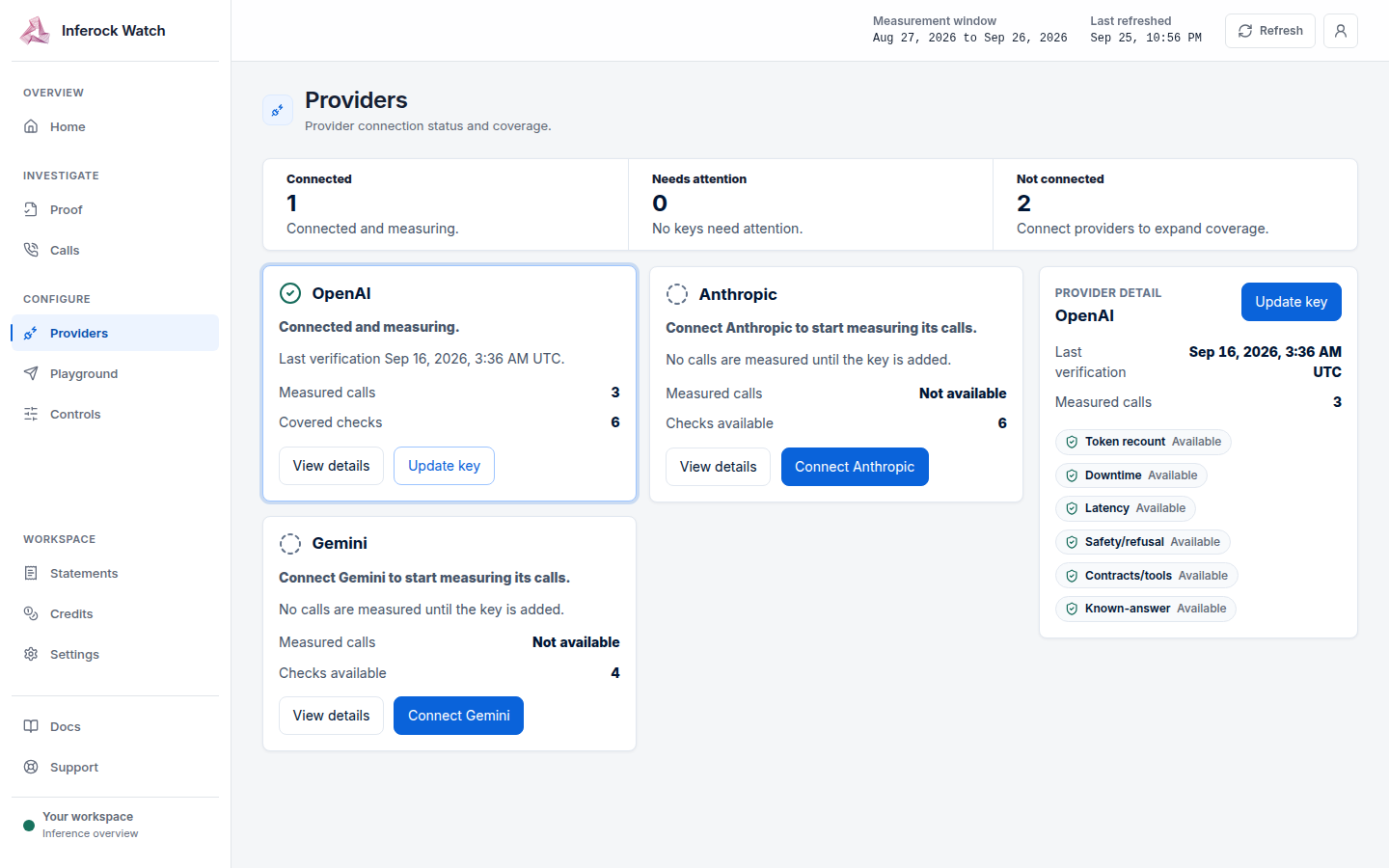
The documented provider choices are OpenAI, Anthropic and Gemini. Select OpenAI to follow the request example in First call through the gateway.
3. Connect and verify the provider key
Enter the key for the selected provider. Activation records acceptance, verifies and stores the provider key, activates the account, and issues the first Inferock key.
If provider verification fails with 422, confirm that you selected the matching provider, check the key in that provider account, and try again. A 503 response means the activation service is resuming; retry shortly.
4. Save the first Inferock key
The first Inferock key is returned only when the account first becomes active. The screen marks it Shown once. Save it before leaving that screen, then use it in gateway requests.
5. Update a provider key when needed
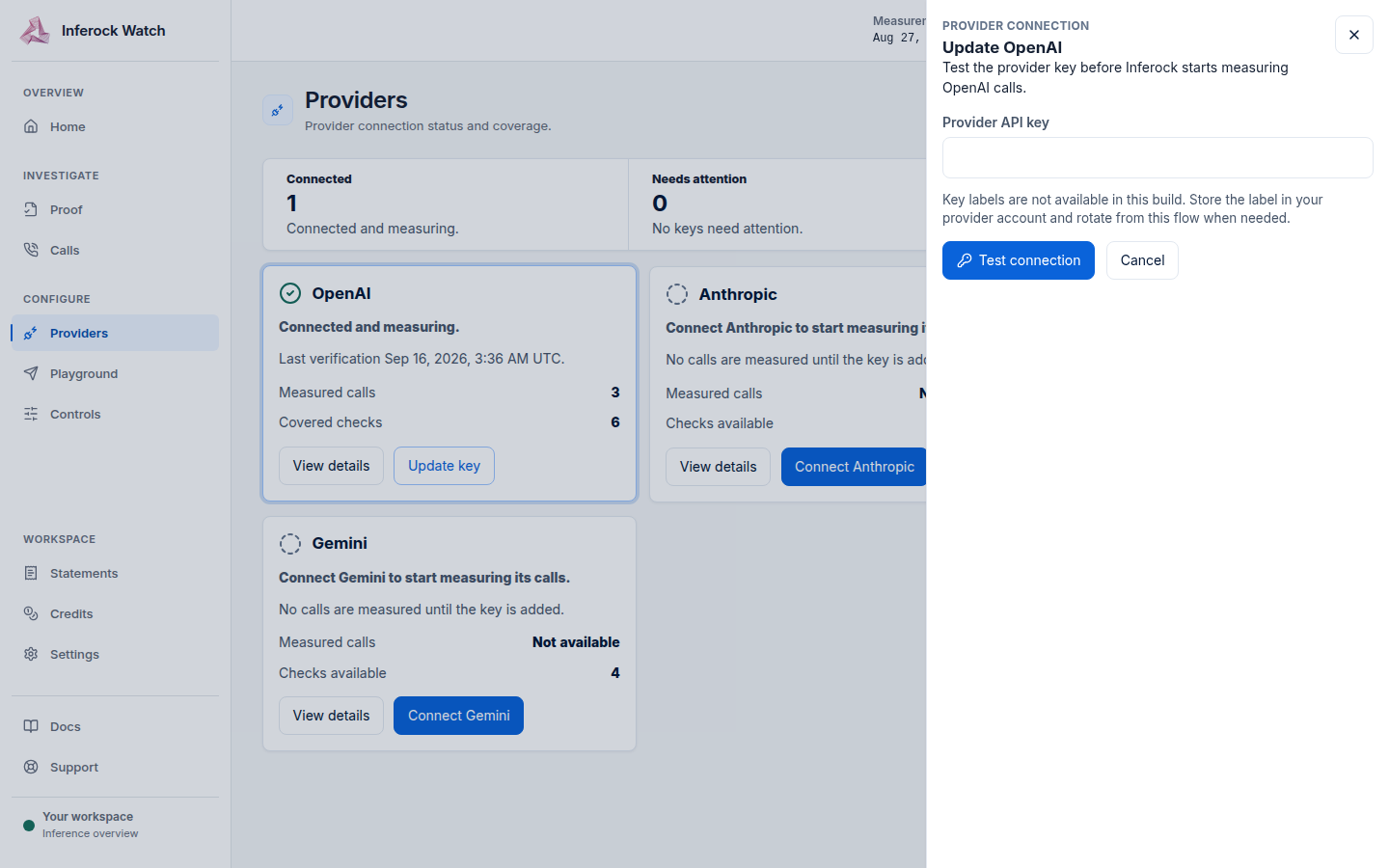
In Providers, use the key-update control for the provider. The replacement is verified before it is saved. Updating a key does not repeat onboarding. The Update key control is on the provider card shown in step 3.
6. Replace a lost Inferock key
Open Settings, then Inferock keys. Enter a label and select Issue key. Save the new key when it is shown, then revoke the lost key from the same list. Each newly issued key is shown once. If key management is unavailable for your account, follow Support and contact.
If setup cannot be completed
If you still need help, email support@inferock.ai; we respond within one business day.